How to Turn an Audio Recording into Meeting Minutes with AI
Step-by-step guide to turn an audio recording into meeting minutes: upload your file to Meco, let AI transcribe it, then auto-summarize into notes with decisions and action items.
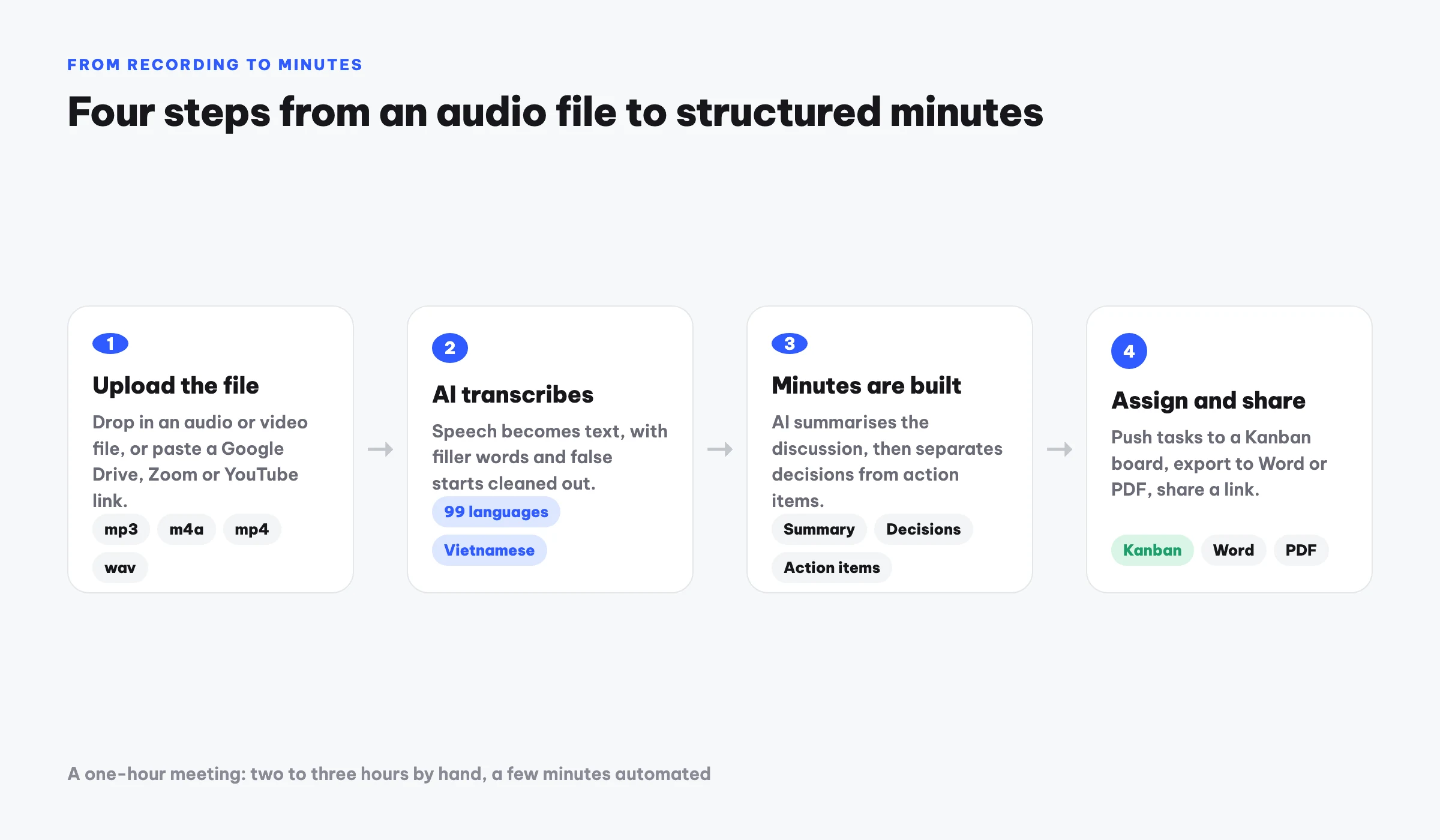
Already have a recording of your meeting and want it as clean minutes? The fastest way is to upload the file to Meco: the AI transcribes the speech into text, then summarizes it into structured minutes with a summary, a list of decisions, and a table of action items with owners. You spend a few minutes clicking, and the machine handles the transcription and the summary.
This guide walks through the exact steps, plus recording tips and a comparison of doing it by hand versus using AI.
Why generate minutes from a recording with AI
Recording a meeting is easy. Sitting down to replay it and type everything out is not. A one-hour meeting usually takes two to three hours to transcribe by hand, before you even start summarizing and pulling out who owns what. AI automates that heavy lifting: you drop in the file and get back a full transcript along with structured minutes.
The best part is that you need no special equipment. Any audio or video file from your phone, a voice recorder, Zoom, or any other source works, and you can process it after the meeting is already over.
If the meeting has not happened yet, you do not have to record with another app and upload afterwards. It is simpler to record the in-person meeting directly in the app and skip the file transfer entirely.
Steps to create minutes from an audio file
Here is the full workflow in Meco:
- Go to Meco and sign in. The Free plan gives you 1 hour of processing for life, enough to test one meeting before deciding to upgrade.
- Upload your recording. Drag and drop an mp3, m4a, mp4, or other common format into the upload area. If the file lives on Google Drive, Zoom, or YouTube, paste the link to import it directly without downloading first.
- Select the meeting language. Meco is multilingual. Picking the right language makes the transcript noticeably more accurate, especially for names and specialized terms.
- Let the AI transcribe the speech. The system converts the full recording to text and filters out filler words, hesitations, and noise so the transcript reads cleanly.
- Get the minutes automatically. The AI summarizes the meeting into three parts: a content summary, a list of decisions, and a table of action items with owners and status.
- Review and edit. Read through the minutes, fix any names, and adjust wording if needed. You can push the action items to your project Kanban board to track them.
- Export and share. Export the minutes to Word or PDF, or create a share link to send to everyone involved.
What the output minutes contain
After processing, you get structured minutes instead of one long wall of text. The main parts:
| Component | Contents | What it is for |
|---|---|---|
| Summary | A few short paragraphs on the key points | Grasp the meeting fast without reading everything |
| Decisions | A list of what was agreed | Record conclusions and avoid disputes later |
| Action items | A table of tasks, owners, and status | Assign work clearly and track progress |
| Full transcript | The complete, noise-filtered text | Look up a specific moment when you need it |
By hand versus using AI
Many people still replay and type by hand because they assume it is the only option. The table below shows the difference in time and effort for a one-hour meeting:
| Criteria | Replay and type by hand | Using AI (Meco) |
|---|---|---|
| Transcription time | 2 to 3 hours | A few minutes |
| Content summary | Read and rewrite yourself | Automatic |
| Extracting action items | Filter manually | Automatic with owners |
| Filtering filler and noise | Done by hand | Automatic |
| Export to Word or PDF | Format yourself | One click |
Tips for a more accurate transcript
The quality of your recording directly shapes the quality of the minutes. A few simple habits help:
- Record clearly. Pick a quiet room and limit background noise and echo.
- Place the mic near the speakers. For a group meeting, put the phone or recorder in the middle of the table to capture every voice evenly.
- Ask people to speak one at a time. When voices overlap, the transcript struggles to separate them.
- Set the correct language before processing. This step is easy to skip but matters a lot for accuracy.
- Say names and key numbers clearly. Where possible, pronounce the details you need captured slowly and distinctly.
An AI assistant that remembers across meetings
A useful benefit once you build up several sets of minutes is that an AI assistant can answer questions drawn from all your saved meetings. You can ask things like how much budget was approved last week, or who owns the design work, and get an answer pulled from your own archive of minutes. For anyone who meets often, this is far faster than reopening each file one by one.
Frequently asked questions
Can it handle a 2-hour recording?
Yes. Meco handles long files. Just keep an eye on the hours in your plan: Free gives 1 hour for life, Plus gives 30 hours per month, and Team gives 60 hours per month.
Is there a cost?
You can start for free with 1 hour of processing for life. If you need more, Plus is $7.50 USD per month for 30 hours, and Team covers 60 hours per month.
Which formats are supported?
Meco accepts many common audio and video formats such as mp3, m4a, mp4, and more. You can also import directly from Google Drive, Zoom, or YouTube using a link.
How accurate is the transcription?
Meco is multilingual and produces reliable transcripts. For the best accuracy, choose the correct language before processing and use a clear recording.
Can I edit the minutes after the AI creates them?
Yes. You review and edit the minutes, push action items to a Kanban board, then export to Word or PDF or share by link.
Try Meco for free
Record or upload a meeting and get minutes with decisions and action items right away. First hour free.
Start for free